How to Scrape Google Maps: 2026 Tutorial
Learn how to scrape Google Maps data in 2026, what business data you can collect, common scraping challenges, and how Talordata SERP API helps automate Google Maps data collection.
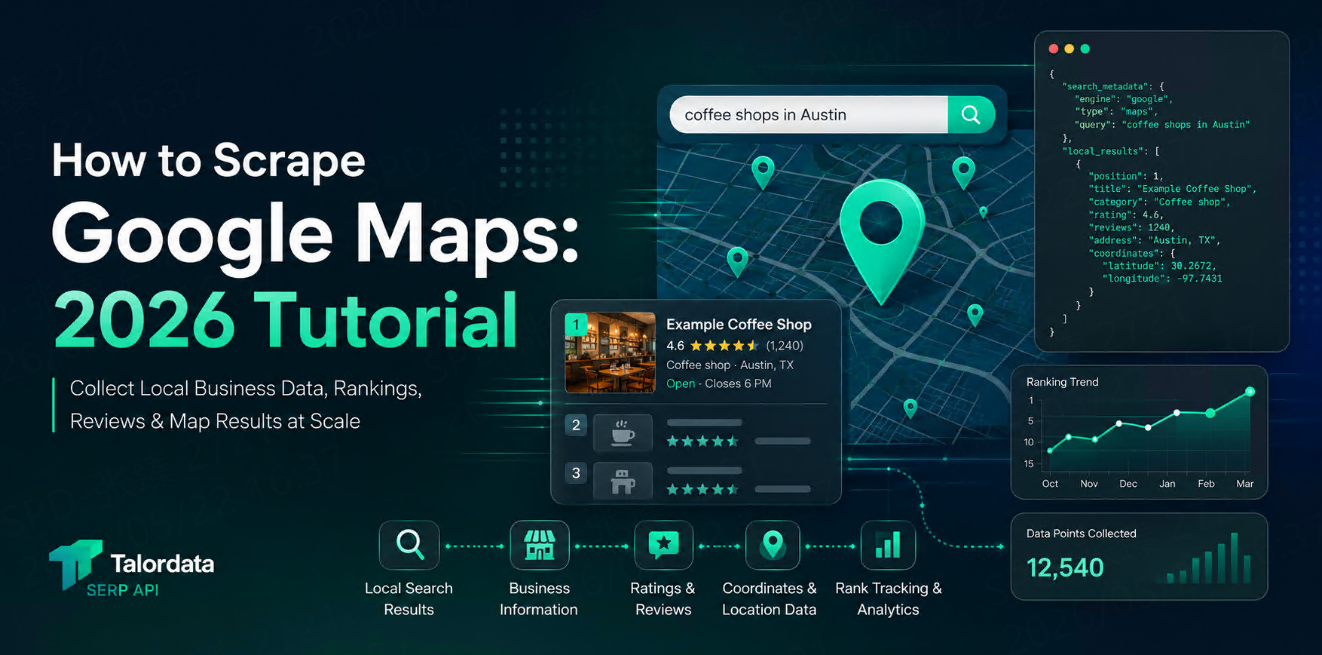



Google Maps is one of the richest public sources for local business intelligence.
A single search can show business names, categories, ratings, review counts, addresses, websites, phone numbers, opening hours, and map positions. For local SEO teams, agencies, sales teams, and market researchers, this data is valuable because it reflects what users actually see when they search for local services.
For example:
coffee shops in Austin
dentist near me
best hotels in Singapore
car repair in Chicago
Italian restaurants in Brooklyn
If you only need to check one or two searches, manual research is enough. But when you need to monitor hundreds of keywords across many cities, manual checking quickly becomes impossible.
That is where Google Maps scraping comes in.
What Data Can You Scrape from Google Maps?
Google Maps results may vary depending on the query, country, language, device, and search location. In most local search scenarios, you can usually extract fields such as:
Field | Example | Common Use |
Business name | Joe’s Coffee House | Identify local businesses |
Category | Coffee shop | Segment by business type |
Rating | 4.6 | Reputation analysis |
Review count | 1,240 reviews | Popularity and trust signal |
Address | 123 Main St, Austin | Location analysis |
Phone number | +1 xxx-xxx-xxxx | Lead enrichment |
Website | example.com | Domain matching |
Opening hours | Open ⋅ Closes 6 PM | Availability research |
Coordinates | Latitude / longitude | Mapping and clustering |
Ranking position | 1, 2, 3... | Local SEO tracking |
For most business use cases, the most important fields are:
business name
ranking position
category
rating
review count
address
website
phone number
location
You do not need every field. You need the fields that help answer a specific business question.
Why Scrape Google Maps?
Google Maps data is useful because it shows local visibility.
A business may rank well in one city but not another. A restaurant may have great reviews but poor visibility for important keywords. A local competitor may dominate “near me” searches in a specific neighborhood.
Google Maps scraping helps turn those search results into structured data that can be tracked, compared, and analyzed.
Common Use Cases
1. Local SEO Rank Tracking
Local SEO teams need to know where a business appears for target keywords.
For example, a dental clinic may want to track:
dentist in Austin
emergency dentist Austin
family dentist near me
teeth whitening Austin
By collecting Google Maps results regularly, SEO teams can monitor ranking changes, compare competitors, and measure whether local optimization work is improving visibility.
2. Competitor Monitoring
Google Maps results make it easy to see who is visible in a local market.
You can track:
which competitors appear
their ranking positions
their ratings
their review counts
their business categories
their locations
their websites
This is useful for agencies, franchise brands, local service providers, hotel groups, restaurants, clinics, and retail chains.
3. Lead Discovery
Sales teams often use Google Maps data to find local businesses that match a target profile.
For example:
restaurants without websites
clinics with low review counts
local stores with outdated web presence
businesses in a specific city and category
companies with strong ratings but weak online visibility
This data can support outbound sales, CRM enrichment, and market segmentation.
4. Market Research
Google Maps can also help estimate local market density.
A research team may want to compare:
how many gyms appear in each city
which areas have more beauty salons
which neighborhoods have dense restaurant competition
which local categories have stronger review activity
This is useful for location planning, competitive research, and regional expansion.
Google Maps API vs Google Maps Scraping
Before building a scraper, it is important to understand the difference between Google’s official APIs and Google Maps scraping.
Google Places API provides official endpoints such as Text Search, Nearby Search, and Place Details. Text Search returns place information based on text queries, while Nearby Search finds places based on location and place type. Google’s newer Places API also uses FieldMask to control which fields are returned.
That can work well when you are building an app that needs place information.
But SEO and market intelligence teams often ask a slightly different question:
Who ranks for this local keyword?
Which businesses appear first?
How do results change by city?
Which competitors appear across different locations?
What does the local search result look like from a user’s perspective?
For those workflows, a Google Maps SERP data workflow is often more useful than a simple place lookup.
Compliance Note Before You Start
Google Maps data usage needs careful compliance review.
Google Maps Platform Terms include restrictions against scraping Google Maps Content for use outside the services, including bulk downloading and saving certain Maps content such as business names, addresses, or reviews.
This article is for educational and technical discussion. Before collecting or storing any Google Maps-related data, review Google’s terms, your local laws, privacy requirements, and your internal compliance policy.
For production workflows, many teams prefer structured SERP data providers because they want a more reliable and controlled way to access search result data without maintaining fragile browser automation.
How to Scrape Google Maps with Python
A basic Google Maps scraper usually follows this workflow:
1. Open a Google Maps search URL
2. Wait for the page to load
3. Scroll the results panel
4. Extract visible business listing data
5. Parse the text into structured fields
6. Export the data to JSON or CSV
Because Google Maps is dynamic and JavaScript-heavy, a browser automation tool such as Playwright is more practical than a simple HTTP request.
Below is a simple educational example.
Step 1: Create a Python Project
Create a new folder:
mkdir google-maps-scraper
cd google-maps-scraper
python -m venv venv
Activate the environment:
# macOS / Linux
source venv/bin/activate

# Windows
venv\Scripts\activate
Install Playwright:
pip install playwright
python -m playwright install
Create a file:
touch scraper.py
Step 2: Open a Google Maps Search Page
Add this code to scraper.py:
import asyncio
from playwright.async_api import async_playwright

SEARCH_URL = "https://www.google.com/maps/search/coffee+shops+in+Austin"

async def main():
    async with async_playwright() as p:
        browser = await p.chromium.launch(headless=False)
        page = await browser.new_page(locale="en-US")

        await page.goto(SEARCH_URL, wait_until="domcontentloaded", timeout=60000)
        await page.wait_for_timeout(5000)

        await browser.close()

asyncio.run(main())
Run it:
python scraper.py
This opens Google Maps and loads a local search result page.
Keep headless=False while testing. It helps you see what the browser is doing.
Step 3: Scroll the Results Panel
Google Maps does not load all listings at once. You usually need to scroll the result panel to load more businesses.
Add this function:
async def scroll_results(page, scroll_times=8):
    feed = page.locator('div[role="feed"]')

    for _ in range(scroll_times):
        await feed.evaluate("(el) => el.scrollBy(0, el.scrollHeight)")
        await page.wait_for_timeout(1500)
This scrolls the left-side results panel several times.
In real projects, you may need stronger logic to detect when no more results are loading.
Step 4: Extract Business Listings
Google Maps result cards can change, so selectors may break over time. A simple starting point is to collect listing card text and accessible labels.
Add this function:
async def extract_listings(page):
    cards = page.locator('div[role="article"]')
    count = await cards.count()

    results = []

    for i in range(count):
        card = cards.nth(i)

        try:
            name = await card.get_attribute("aria-label")
            text = await card.inner_text(timeout=3000)

            results.append({
                "position": i + 1,
                "name": name,
                "raw_text": text
            })

        except Exception:
            continue

    return results
This will not produce a perfect dataset yet, but it gives you a usable raw extraction layer.
Step 5: Export Results to JSON
Now combine everything:
import asyncio
import json
from playwright.async_api import async_playwright

SEARCH_URL = "https://www.google.com/maps/search/coffee+shops+in+Austin"

async def scroll_results(page, scroll_times=8):
    feed = page.locator('div[role="feed"]')

    for _ in range(scroll_times):
        await feed.evaluate("(el) => el.scrollBy(0, el.scrollHeight)")
        await page.wait_for_timeout(1500)

async def extract_listings(page):
    cards = page.locator('div[role="article"]')
    count = await cards.count()

    results = []

    for i in range(count):
        card = cards.nth(i)

        try:
            name = await card.get_attribute("aria-label")
            text = await card.inner_text(timeout=3000)

            results.append({
                "position": i + 1,
                "name": name,
                "raw_text": text
            })

        except Exception:
            continue

    return results

async def main():
    async with async_playwright() as p:
        browser = await p.chromium.launch(headless=False)
        page = await browser.new_page(locale="en-US")

        await page.goto(SEARCH_URL, wait_until="domcontentloaded", timeout=60000)
        await page.wait_for_timeout(5000)

        await scroll_results(page)
        results = await extract_listings(page)

        with open("google_maps_results.json", "w", encoding="utf-8") as f:
            json.dump(results, f, ensure_ascii=False, indent=2)

        await browser.close()

asyncio.run(main())
Run the script:
python scraper.py
You should get a file named:
google_maps_results.json
The output may look like this:
[
  {
    "position": 1,
    "name": "Example Coffee Shop",
    "raw_text": "Example Coffee Shop\n4.6\n(1,240)\nCoffee shop\nAustin, TX\nOpen ⋅ Closes 6 PM"
  }
]
Step 6: Parse the Raw Listing Text
The raw text is useful, but most teams need structured fields.
You can start with simple parsing rules:
import re

def parse_listing(raw_text):
    lines = [line.strip() for line in raw_text.split("\n") if line.strip()]

    rating = None
    review_count = None

    for line in lines:
        if re.match(r"^\d\.\d$", line):
            rating = line

        review_match = re.search(r"\(([\d,]+)\)", line)
        if review_match:
            review_count = review_match.group(1).replace(",", "")

    return {
        "lines": lines,
        "rating": rating,
        "review_count": review_count
    }
This parser is only a starting point.
Real Google Maps pages vary by country, language, category, and layout. If you want stable output, you will need more robust parsing, test cases, fallback rules, and monitoring.
Why Google Maps Scraping Is Difficult
A basic scraper is easy to build.
A reliable scraper is much harder.
Here are the main issues.
1. Google Maps Is Dynamic
Google Maps loads results progressively. Some data appears only after scrolling. Some details appear only after clicking a business listing.
That means your scraper may need to handle:
scrolling
waiting
clicking
lazy loading
detail panels
different result layouts
This adds complexity quickly.
2. Selectors Can Break
Google Maps pages are not designed as a stable data API.
Class names, DOM structure, and result layouts may change. A selector that works today may fail later.
This creates maintenance work.
3. Local Results Are Sensitive to Location
The same keyword can return different results depending on:
country
city
coordinates
language
device
search context
For local SEO tracking, this is a big deal.
If location settings are inconsistent, ranking data becomes unreliable.
4. Parsing Is Messy
Google Maps result text is not always clean.
A listing may include rating, review count, category, address, price level, hours, service options, or short notes in different orders.
You may need custom rules for:
ratings
reviews
addresses
phone numbers
opening hours
business categories
temporary closures
sponsored results
The more markets you support, the harder parsing becomes.
5. Scaling Browser Automation Is Expensive
Running one local scraper is simple.
Running thousands of searches across cities is different.
At scale, you need to manage:
browser instances
timeouts
failed sessions
data validation
duplicate listings
scheduled jobs
storage
monitoring
error handling
This is often where teams stop building their own scraper and start looking for a SERP API.
A Better Way: Use a Google Maps SERP API
For small tests, a browser scraper is fine.
For recurring business workflows, a SERP API is usually easier.
Instead of opening Google Maps in a browser, scrolling the page, and parsing messy HTML, you send an API request and receive structured data.
A typical workflow looks like this:
1. Prepare keywords
2. Prepare target locations
3. Send API requests
4. Receive structured JSON
5. Store results
6. Analyze rankings, competitors, and business fields
Talordata SERP API is designed for structured search result data across Google and other major search engines. It supports geo-targeted SERP data, JSON/HTML response formats, Maps search type, and pay-per-successful-request pricing.
This makes it useful for teams that need repeatable local search data without maintaining fragile scraping infrastructure.
Example Talordata SERP API Workflow
A Google Maps data workflow with Talordata may look like this:
Keyword: coffee shops
Location: Austin, Texas, United States
Search type: Maps
Language: English
Output: JSON
The request structure may look like this:
curl -X POST "https://<talordata-serp-api-endpoint>" \
  -H "Authorization: Bearer $TALORDATA_API_KEY" \
  -H "Content-Type: application/json" \
  -d '{
    "engine": "google",
    "type": "maps",
    "q": "coffee shops in Austin",
    "location": "Austin, Texas, United States",
    "gl": "us",
    "hl": "en",
    "device": "desktop",
    "output": "json"
  }'
The exact endpoint and parameters should follow your Talordata dashboard or API documentation.
A structured response may include fields like:
{
  "search_metadata": {
    "engine": "google",
    "type": "maps",
    "query": "coffee shops in Austin",
    "location": "Austin, Texas, United States"
  },
  "local_results": [
    {
      "position": 1,
      "title": "Example Coffee Shop",
      "category": "Coffee shop",
      "rating": 4.6,
      "reviews": 1240,
      "address": "Austin, TX",
      "phone": "+1 xxx-xxx-xxxx",
      "website": "https://example.com",
      "hours": "Open ⋅ Closes 6 PM",
      "coordinates": {
        "latitude": 30.2672,
        "longitude": -97.7431
      }
    }
  ]
}
This type of output is easier to plug into a dashboard, database, spreadsheet, CRM, or SEO reporting system.
Python Example with Talordata SERP API
A production-oriented script can be much shorter:
import os
import json
import requests

API_KEY = os.getenv("TALORDATA_API_KEY")
ENDPOINT = "https://<talordata-serp-api-endpoint>"

payload = {
    "engine": "google",
    "type": "maps",
    "q": "coffee shops in Austin",
    "location": "Austin, Texas, United States",
    "gl": "us",
    "hl": "en",
    "device": "desktop",
    "output": "json"
}

headers = {
    "Authorization": f"Bearer {API_KEY}",
    "Content-Type": "application/json"
}

response = requests.post(
    ENDPOINT,
    headers=headers,
    json=payload,
    timeout=60
)

response.raise_for_status()
data = response.json()

with open("talordata_google_maps_results.json", "w", encoding="utf-8") as f:
    json.dump(data, f, ensure_ascii=False, indent=2)
With this approach, your team can focus on the business workflow instead of browser automation.
What Should You Track?
Do not collect data without a clear goal.
Start with a use case, then choose the right fields.
For Local SEO
Track:
keyword
location
business name
ranking position
rating
review count
category
timestamp
This helps you monitor local ranking changes over time.
For Competitor Monitoring
Track:
competitor name
position
category
rating
review count
address
website
phone
This helps you compare visible competitors across cities or service areas.
For Lead Discovery
Track:
business name
category
website
phone
rating
review count
address
city
This helps you filter businesses by sales potential.
For Market Research
Track:
category
city
coordinates
review volume
business density
average rating
This helps you compare local markets and identify saturated or underserved areas.
Final Thoughts
Google Maps data can help teams understand local search visibility, competitor strength, business density, and market opportunities.
A simple Python scraper can show how the process works. But for real business use, maintaining a Google Maps scraper can become difficult because of dynamic pages, unstable selectors, location-sensitive results, and parsing complexity.
Talordata SERP API gives teams a more practical way to collect structured search result data across keywords and locations. Instead of spending most of your time maintaining scraping infrastructure, you can focus on analysis, reporting, and decision-making.
A good workflow is simple:
define your target keywords
choose your locations
collect structured results
store the data consistently
track changes over time
turn the data into action
That is how Google Maps data becomes more than a list of businesses. It becomes a local search intelligence system.
FAQ
Is it possible to scrape Google Maps?
Technically, yes. You can use browser automation tools to open Google Maps, run searches, scroll result panels, and extract visible listing data. However, Google Maps data usage involves terms and compliance considerations, so teams should review Google’s policies and applicable laws before collecting or storing data.
What data can be collected from Google Maps results?
Common fields include business name, category, rating, review count, address, website, phone number, opening hours, coordinates, and ranking position. The available fields may vary by query, location, language, device, and result layout.
What is the difference between Google Places API and Google Maps scraping?
Google Places API is an official Google API for place-related data, including Text Search, Nearby Search, and Place Details. Google Maps scraping or SERP-style collection focuses more on visible local search results, ranking positions, and what users see for a specific keyword and location.
When should I use a Google Maps SERP API?
Use a Google Maps SERP API when you need recurring local search data across many keywords, locations, languages, or devices. It is especially useful for local SEO tracking, competitor monitoring, lead discovery, and market research.
Can Talordata help collect Google Maps data?
Yes. Talordata SERP API supports structured SERP data, geo-targeted search results, JSON/HTML output, and Maps search type. This makes it suitable for teams that need scalable local search data workflows.